For bands, jam groups & VRChat performers

Play together online.
Perfectly in sync.

VRC Downbeat lets your band jam over the internet with sample-accurate timing — no matter how bad your ping is. Everyone plays to the same backing track, the app lines every performance up to the exact sample, and the host streams the full band mix straight into VRChat.

  • Free & open
  • Windows 10/11
  • End-to-end encrypted
  • Join with a room code
  • ASIO & WASAPI
VRC Downbeat logo glowing in a dark studio lounge

The problem

Latency killed the online jam.
So we removed it from the equation.

Playing music together over the internet normally fails for one simple reason: sound arrives late. Even 30 ms of network delay is enough to make a band fall apart — and most tools try (and fail) to fight this with ever-smaller buffers.

VRC Downbeat takes a different approach: nobody listens to each other live over the network. Instead, every musician plays along to the same backing track locally — with zero latency — and the app reassembles all performances on the host's machine, sample by sample, exactly as they were played. The result sounds like the whole band was in one room.

How it works

What actually happens in the background

One app, two roles: one of you is the Host, everyone else joins as a Musician. Here is the full journey of a jam, step by step.

1

The host builds a song library

The host adds songs as stems — separate tracks for drums, bass, guitar, vocals and so on (platforms like Karaoke-Version sell songs in exactly this format — more on that in the guided tour). Then the host opens a session with one click on “Host via Downbeat Server” and gets a short room code like D29UQS to share with the band — no port forwarding, no exposed IP address. (Prefer full control? “Start own Server” still offers classic direct hosting on your own port.)

2

Musicians connect and download the songs

Each musician types in the room code, picks a name and connects — the connection is end-to-end encrypted from the first byte. Songs and their stems are transferred over the same connection and stored locally. Every musician gets their own personal mix of the backing track — the drummer can mute the drum stem, the singer can push the vocals up, and nobody else is affected.

3

Soundcheck: “Prepare Jam”

Before the jam starts, everyone's instrument is streamed live to the host as a soundcheck. The host hears each musician within ~150 ms and sets levels like a sound engineer at the mixing desk. Meanwhile every musician's app loads the song into RAM and reports ready.

4

Everyone plays locally — with zero latency

On “Go”, playback starts at sample 0 of the backing track on every machine. You hear the backing track and your own instrument directly through your audio interface — there is no network audio in your monitoring at all, so it feels exactly like practicing at home.

While you play, the app records your signal and applies latency compensation like a DAW would: the first few milliseconds (your interface's input + output latency) are discarded, so what remains lines up 1:1 with the backing track. The audio is then sent to the host, tagged with its exact sample position.

5

The 3-second gate makes network lag irrelevant

The host does not play anything immediately. It waits until it has at least 3 seconds of audio buffered from every musician, then starts its own playback: backing track and all incoming performances, read in lock-step from sample 0.

Because every incoming block carries its exact sample position, network jitter, slow connections or short dropouts can never push a musician out of time — a lost block simply becomes a moment of silence, and the stream continues exactly where it belongs. The mix at the host is sample-accurate, always.

6

The band mix goes live — straight into VRChat

The host hears the full band about 3 seconds behind the musicians and mixes it live: every musician has a fader, every stem has a fader. Through the built-in virtual microphone stream, that mix is fed into VRChat (or Discord, or OBS) — so your audience hears a tight, mixed band performance in real time. The host can even talk and play along on top of the delayed mix.

Features

Everything a remote band needs

From the first soundcheck to the final multitrack recording.

Sample-accurate sync

Every performance is placed at its exact sample position. Network lag, jitter and dropouts can never make the band drift apart.

Songs with stems

Backing tracks are made of individual stems. Each musician mixes them locally — mute your own instrument's track and take its place. A master fader moves the whole backing track at once.

Per-channel FX chains

EQ, compressor, reverb, delay, gate, chorus and more — 11 effects, freely ordered, on every stem and every musician. Recordings stay raw; the FX are re-applied (and still editable) on playback and export.

Drag & drop library

Drop audio files or whole folders straight onto the song list — a folder becomes one song with all its files as stems. Rename songs and stems any time; connected musicians get the update instantly.

Singer-friendly monitoring

Separate monitor and capture mute for the host's own input: hear yourself (or don't) without affecting the take, or keep your mic out of the recording and the VRChat stream entirely.

DAW-grade latency compensation

ASIO support reads your interface's exact latency and compensates it automatically. WASAPI works too, with a manual fine-tune offset.

VST3 instruments built in

Load a VST3 instrument (e.g. Superior Drummer 3), plug in your MIDI kit and play. Its sound is captured digitally — no audio routing, no bleed from the backing track.

VRChat virtual mic

Streams the band mix (plus your talk mic) into VRChat, Discord or OBS through a virtual audio cable — with a one-click VB-CABLE installer. No Voicemeeter needed.

Windows app mixer inside

Route any program — Spotify, a YouTube tab, your DAW — into the virtual mic with per-app volume and mute, right from the app. Like EarTrumpet, but built in.

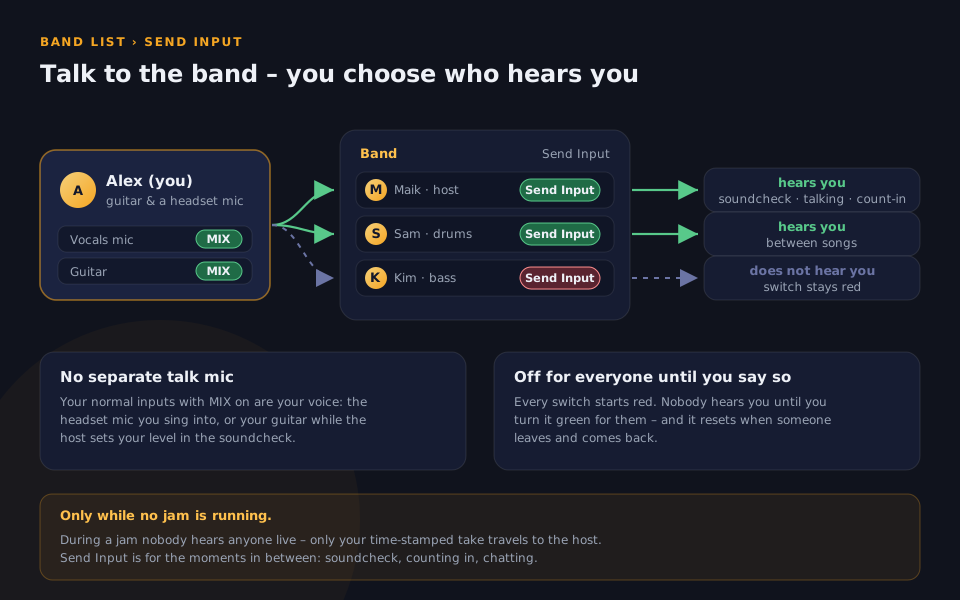
Voice chat & text chat

A dedicated low-bandwidth band voice channel runs alongside the music — talk between takes without touching your instrument signal. Text chat included.

Multitrack recording

Record every jam as separate, sample-aligned stems: one track per musician, the host input and the backing stems. Remix afterwards and export as MP3.

Share recordings

The host can send a finished recording — all stems — to any musician over the same connection. Opt in to receive them automatically after each jam.

End-to-end encrypted

Every connection is sealed with modern authenticated encryption (X25519 + XChaCha20-Poly1305). Chat, songs, audio — nobody in between can read any of it.

Join with a room code

Host a session on the Downbeat Server and share a short code like D29UQS. No port forwarding, no router setup, no IP addresses exchanged.

Privacy by default

You appear under a name you choose — never your computer name. IP addresses are hidden in the app by default and never written to chat or logs.

Privacy & security

Jam together, without giving anything away

Older jam tools force the host to open a router port and hand out their public IP address to the whole band. VRC Downbeat was rebuilt so that nobody has to share anything:

Room codes instead of IP addresses

Both the host and the musicians connect outbound to the Downbeat relay server — like any normal website visit. The relay pairs everyone up by room code and then simply forwards the data. Nobody sees anybody else's address, and nobody touches their router.

The relay can't read your session

Encryption is end-to-end: right after connecting, musician and host exchange ephemeral keys (X25519) and every single message — chat, song transfers, jam audio, voice, recordings — is sealed with XChaCha20-Poly1305 authenticated encryption. The relay only ever forwards ciphertext; not even its operator can listen in. Direct-IP connections get the exact same encryption.

Names, not addresses

Everyone appears under a display name they choose — the app never leaks your Windows computer name. IPs are hidden in the interface by default (one button reveals them if you need them, handy while streaming), connection logs don't record them, and the relay server logs only names and byte counts — never contents, never addresses.

Guided tour

From download to your first jam

A walkthrough of a real session — every screenshot below was taken from a live jam setup. Click any image to enlarge it.

Step 1

Choose your role

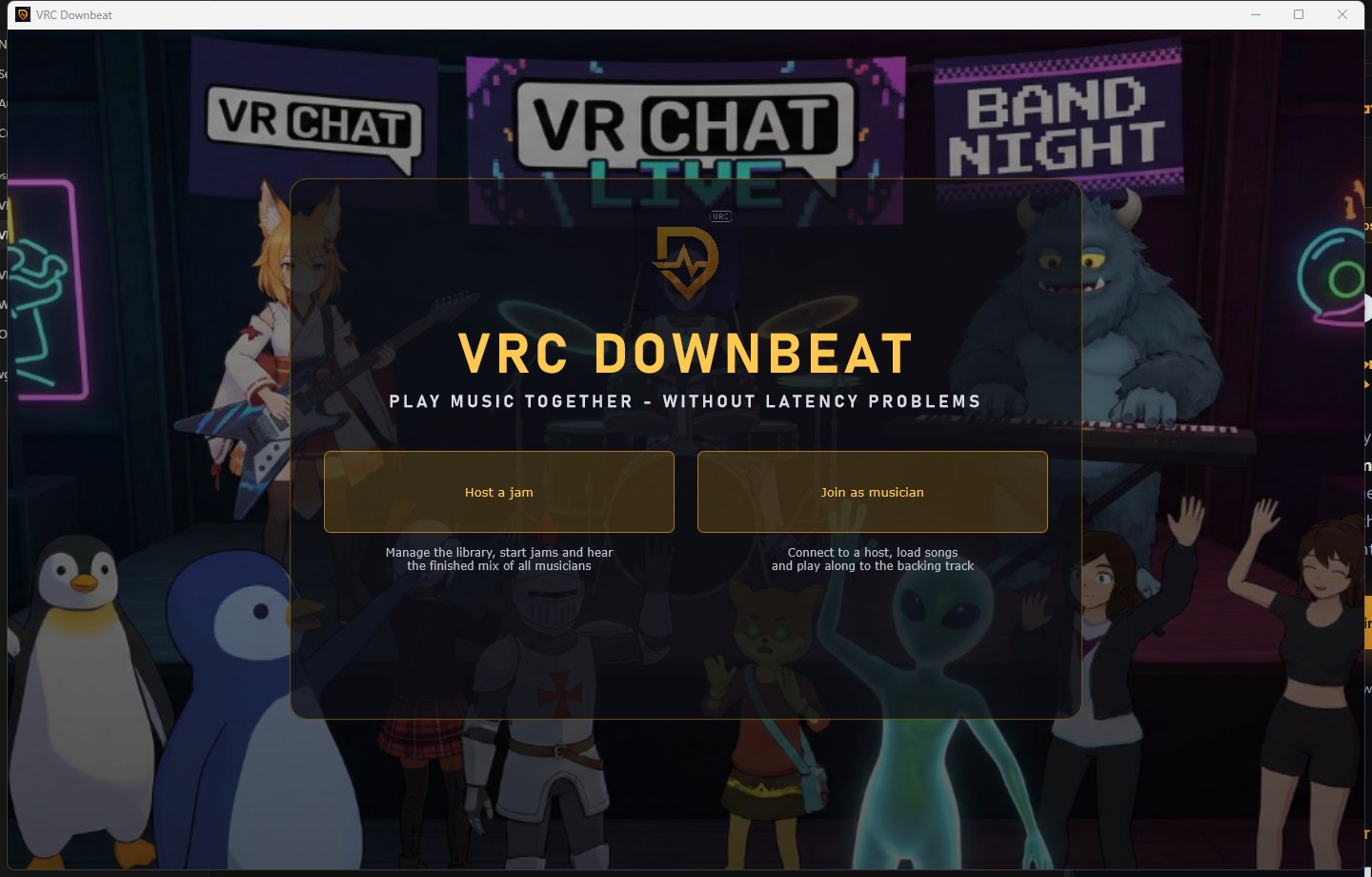
Start the app and pick a side: Host a jam if you manage the band's songs and want to hear (and stream) the finished mix — Join as musician if you want to plug in and play. One person hosts, everyone else joins. You can switch roles anytime.

VRC Downbeat startup screen with Host a jam and Join as musician buttons
Step 2

Host: build your song library

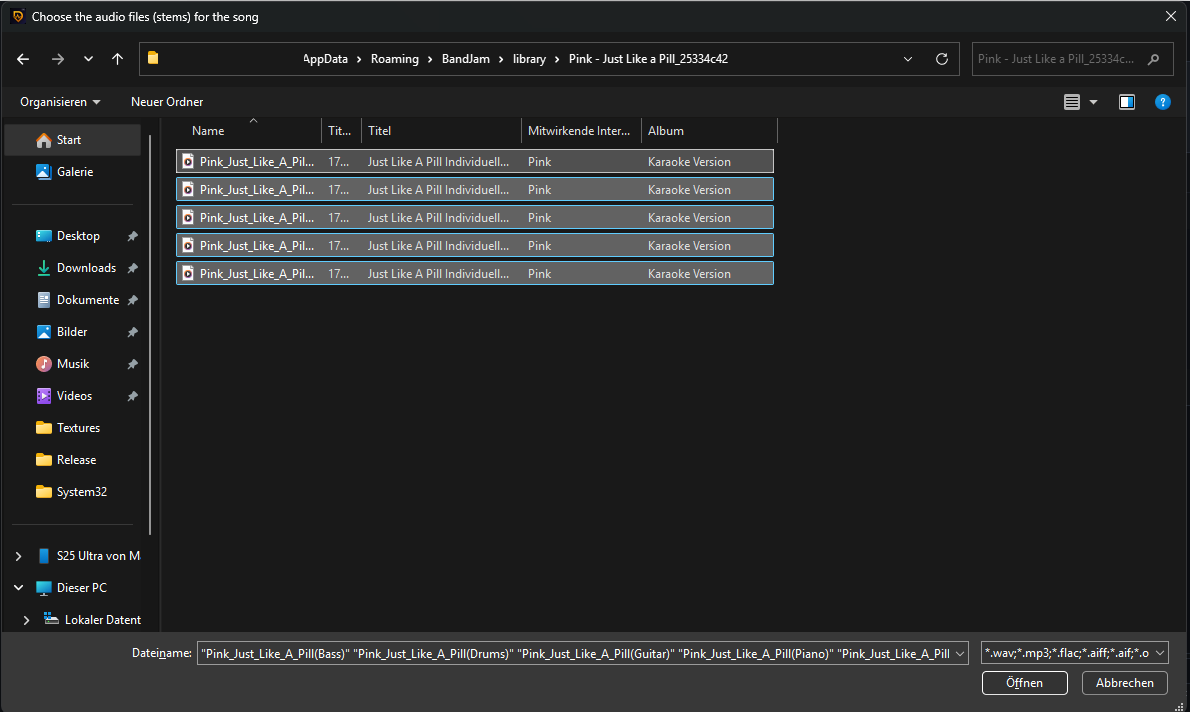
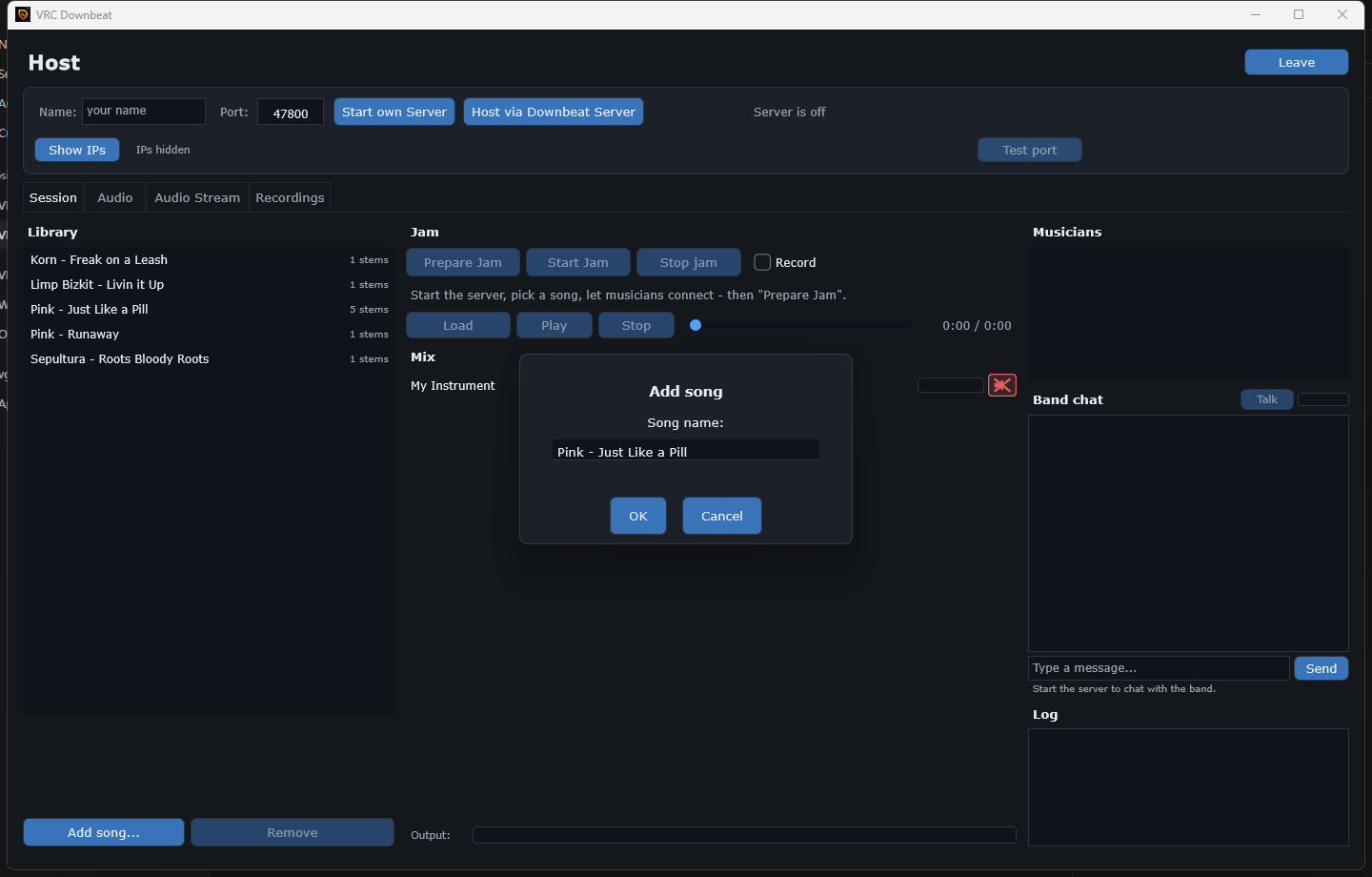
The Library panel on the left is the band's songbook, and only the host manages it. Click Add song… and select all the audio files that belong to one song in a single go — each file becomes one stem (WAV, MP3, FLAC, AIFF and OGG all work). Give the song a name, hit OK, and the app copies the files into its own library and reads their length and sample rate automatically.

The list shows a stem counter next to each song — “5 stems” means bass, drums, guitar, piano and vocals arrive as separate faders for everyone. Only have a normal full mix? That's fine too: one file simply becomes a one-stem song. Picked the wrong files? Select the song and hit Remove. Your musicians never touch any of this — the songs are sent to them automatically when you press “Prepare Jam”.

Where do stems come from? Karaoke-Version sells custom backing tracks where every instrument is a separate download — perfect for this app. Moises can split any regular song into stems (or remove just your instrument) using AI. VRC Downbeat is not sponsored by or affiliated with either of these services — they're simply what works well in practice.
File picker with the five stem files of one song selected at once
Add song dialog naming the new song, with the library list and stem counters behind it
Step 3

Host: open a room, share the code

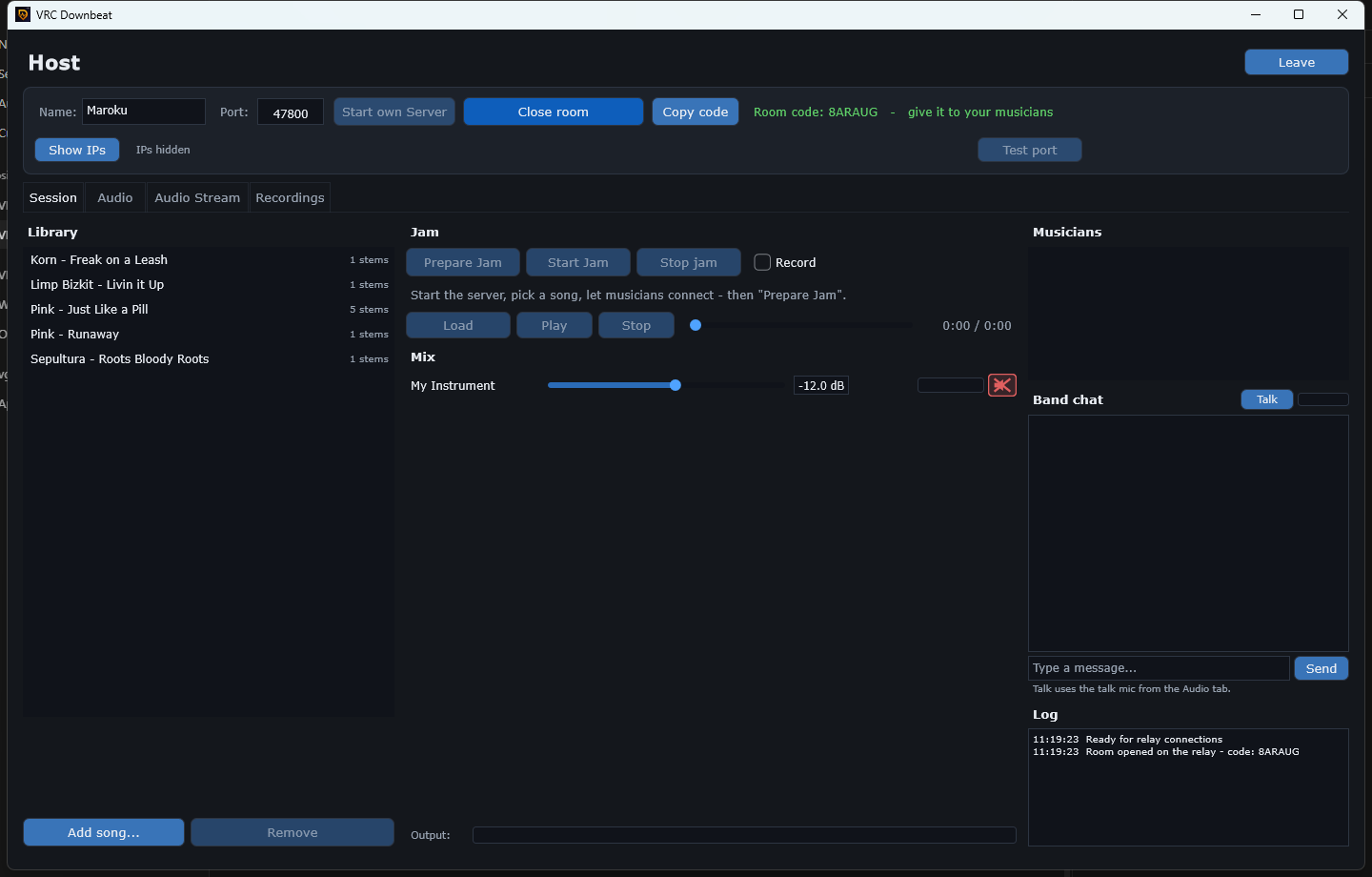
Enter a name and press Host via Downbeat Server — that's it. The app connects outbound to the relay and hands you a short room code to give to your musicians. No port forwarding, no router settings, and IP addresses stay hidden (note the “IPs hidden” toggle). Prefer full control? Start own Server hosts directly on your machine instead, with a built-in port test.

Host view with an open room on the Downbeat Server showing the room code, song library and hidden IPs
Step 4

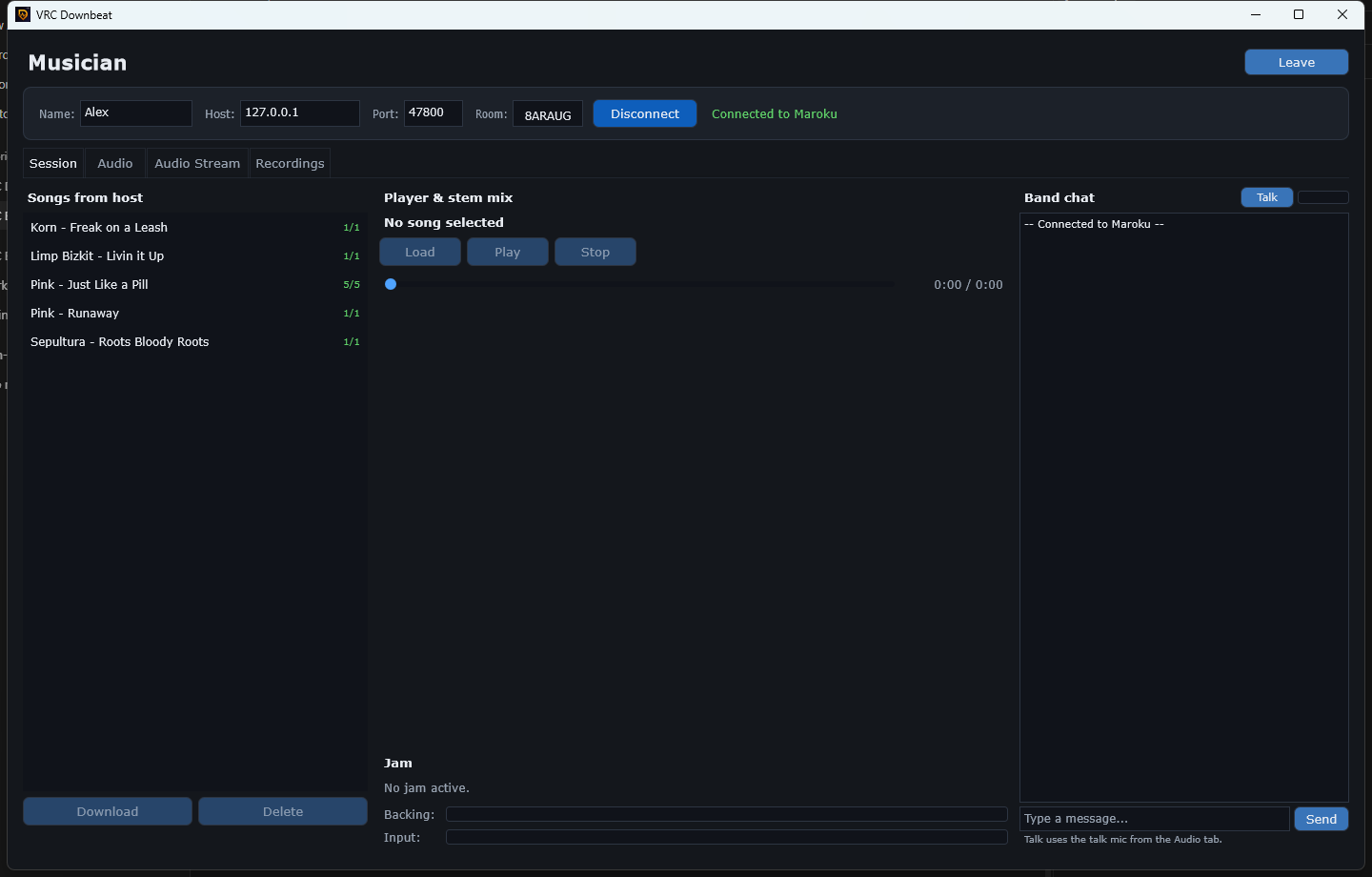
Musicians: type the code & grab the songs

Musicians pick a name, type the room code into the Room field and hit Connect — the end-to-end encrypted link is established automatically. The host's song list appears instantly; download once, and the stems are stored locally. The green counters show how many stems of each song you already have. (Joining a self-hosted server by IP and port works exactly the same way.)

Musician view connected to the host via room code, showing the host's song list and band chat
Step 5

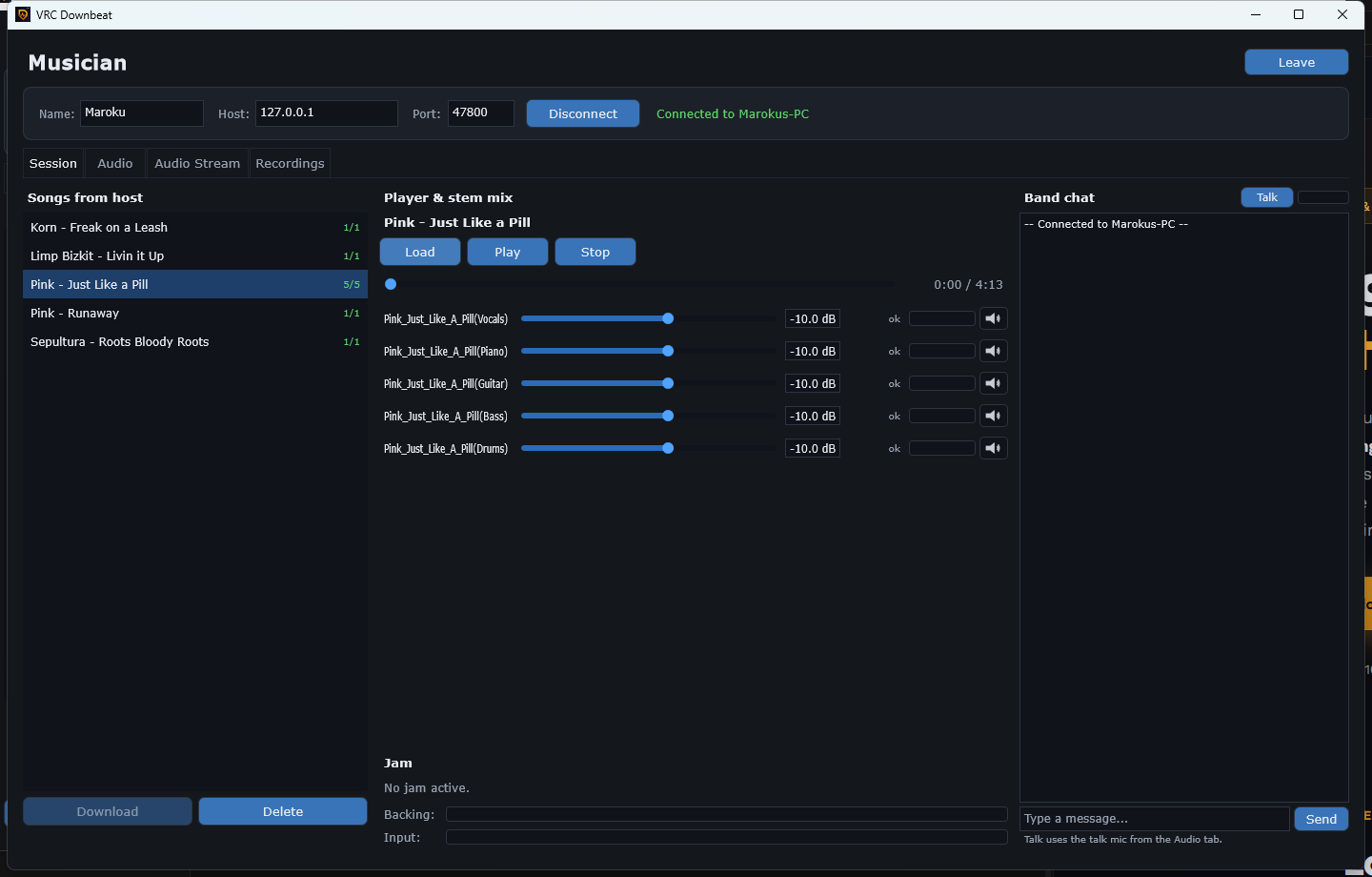
Make the backing track yours

Load a song and every stem gets its own fader: vocals, piano, guitar, bass, drums. Playing drums? Mute the drum stem and take its place. Practice with the player as long as you like — this is exactly what you'll hear during the jam, with zero latency.

Musician stem mixer with five stems, each with volume fader and mute
Step 6

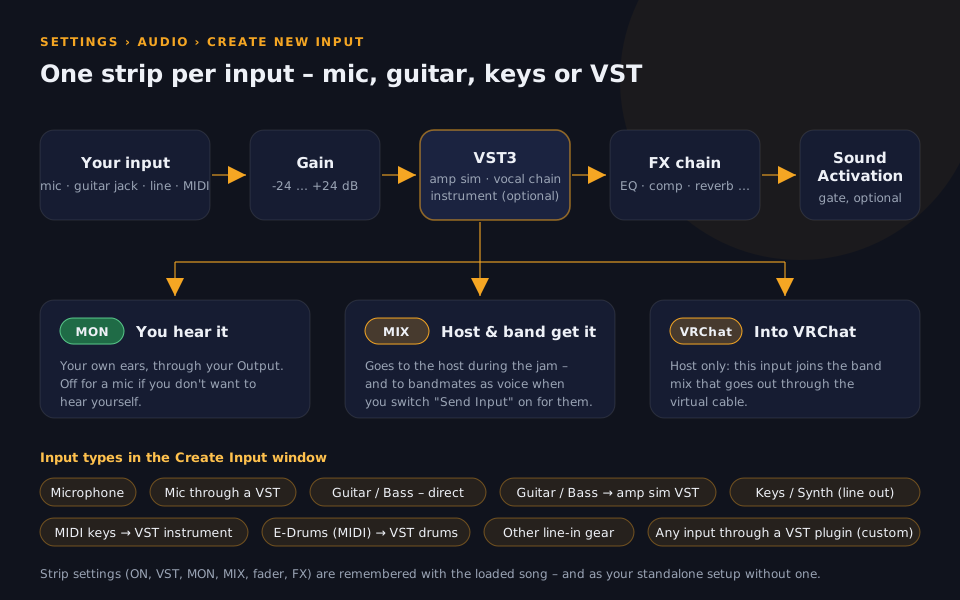
Set up your sound — once

Pick your audio interface in the Audio tab (ASIO recommended — the app then knows your exact latency and compensates it automatically). Playing e-drums or keys? Load your VST3 instrument right here and select your MIDI input — its sound is captured digitally, perfectly separated from the backing track. A separate talk mic handles voice chat.

Musician audio settings with device selection, latency info and VST3 instrument slot
Step 7

Soundcheck with “Prepare Jam”

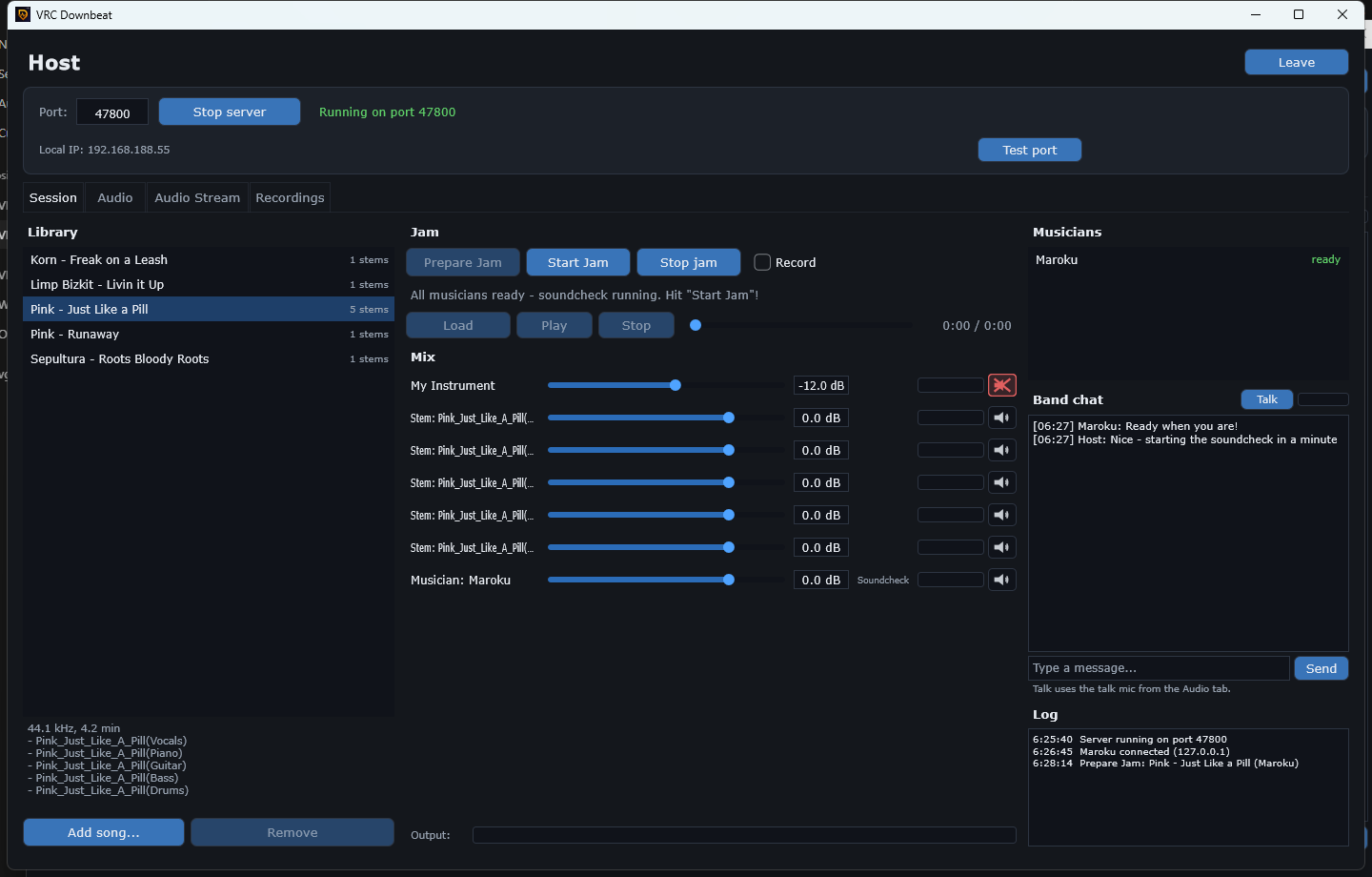
The host picks a song and hits Prepare Jam. Every musician's app loads the song and starts streaming a live soundcheck — the host sees who's ready and sets each musician's level, like an engineer at the desk. When the panel says “All musicians ready”, one click on Start Jam begins the countdown.

Host view during Prepare Jam with stem faders, musician fader and ready status
Step 8

Play — the app does the rest

On “Go”, the backing track starts on every machine at once and you simply play along. In the background, your take is latency-compensated, timestamped and streamed to the host, where the whole band is reassembled sample-accurately — the host hears the full mix about three seconds later and can enable Record to keep every jam.

Musician view ready for the jam with loaded song and ready status
Step 9

Send the band into VRChat

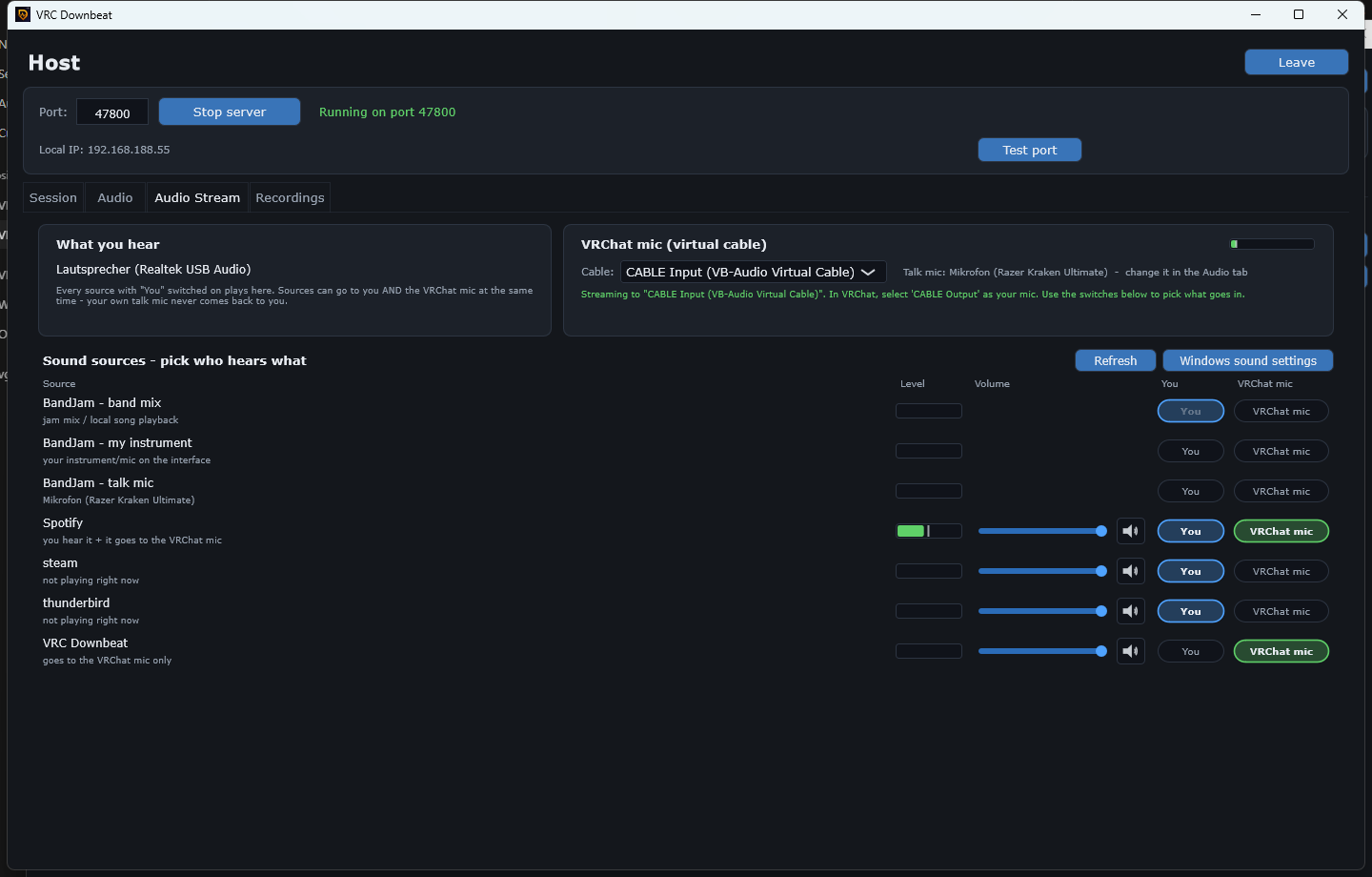
The Audio Stream tab is your broadcast desk: pick the virtual cable as the VRChat mic (one-click VB-CABLE install if you don't have it) and decide per source who hears what — the band mix, your instrument, your talk mic, even Spotify or a browser tab. In VRChat you just select the cable as your microphone.

Audio Stream tab with VRChat mic cable selection and per-source routing switches
Step 10

Relive every jam

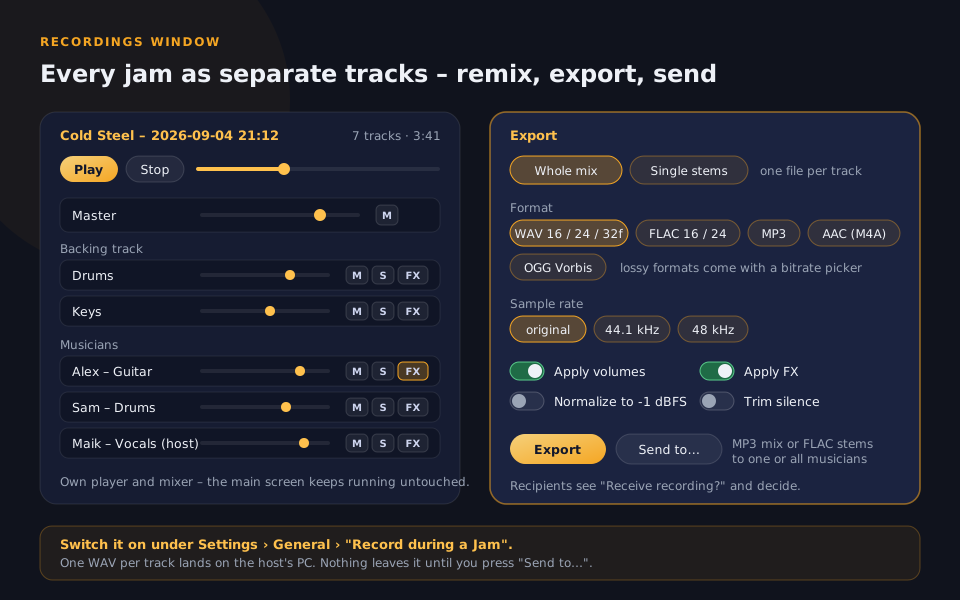
Recorded jams land in the Recordings tab as separate, sample-aligned stems — one per musician, plus the host and the backing track. Remix them with faders, export the result as MP3, or send the whole recording to your bandmates through the app.

Recordings tab with list of recorded jams and MP3 export

Under the hood

For the technically curious

No magic — just careful audio engineering. This is what the app really does.

Native C++ audio engine

Built with the JUCE framework — the same technology behind many professional audio plugins. All processing runs in real-time audio threads with lock-free FIFOs between them; the network can never glitch your sound.

A simple, direct protocol

Host and musicians talk over one TCP connection: JSON messages for control (song lists, jam state, chat) and compact binary blocks for audio, each stamped with its absolute sample position. That stamp is the whole secret — audio can arrive late, but never in the wrong place.

The Downbeat relay server

A deliberately dumb pipe: it understands three greetings — open a room, join a room, pair up — and after that it forwards bytes without interpreting them. Rooms die when the host leaves. Because it never decodes audio, one small server can carry many bands at once, and the whole jam protocol travels through it unchanged.

End-to-end encryption

After pairing, musician and host exchange ephemeral X25519 public keys and derive per-connection session keys; every frame is then sealed with XChaCha20-Poly1305 authenticated encryption (via the audited Monocypher library, keyed by the OS random generator). Keys live only in memory, tampering is detected, and the relay never holds any key material.

Positioned ring buffers

On the host, every musician gets a ring buffer indexed by absolute sample position. Incoming audio is written to exactly the right cell; the mixer reads and re-zeroes cells as it plays. Unwritten regions are silence — a dropout can never cause a permanent offset.

Everything in “song time”

The song's own sample rate is the master clock. Musician recordings are resampled from their device rate into song rate before sending; the host only converts to its device rate at the very last output stage. One shared timebase, zero drift.

The virtual mic, demystified

Windows only lets kernel drivers create virtual audio devices, so VRC Downbeat uses the free VB-CABLE driver (installed for you with one click) and does all mixing and routing itself: band mix, talk mic and per-app captures are resampled and merged into the cable, which VRChat sees as a normal microphone.

Independent audio devices

The main engine (ASIO or WASAPI), the voice chat and the virtual-mic stream each run on their own device in shared mode — they coexist cleanly, and your precious low-latency ASIO driver is used by exactly one thing: your instrument.

FAQ

Frequently asked questions

Do the musicians hear each other while playing?

Not live — that's the point. Each musician hears only the backing track and themselves, with zero latency. The host (and the VRChat audience) hears everyone together, about 3 seconds later, perfectly in sync. Between takes you can talk normally over the built-in voice chat.

Do I need an ASIO interface?

Recommended, not required. ASIO drivers report exact latency values, so compensation is automatic and precise. With WASAPI or DirectSound the app still works — you just fine-tune a manual offset once so your takes land exactly on the grid.

What does the host need to set up?

Nothing, in the default mode: click “Host via Downbeat Server”, get a room code, share it with the band — done. No port forwarding, no router settings, no IP sharing. If you prefer to host entirely on your own hardware, “Start own Server” gives you classic direct hosting (then you forward one port; the app includes a port test).

Is my session private?

Yes. All traffic — chat, songs, audio, recordings — is end-to-end encrypted between musician and host with modern authenticated cryptography (X25519 key exchange, XChaCha20-Poly1305). The relay server only forwards encrypted data and can't read any of it. In the app, you appear under a name you choose, IP addresses are hidden by default, and the relay logs no addresses and no contents.

How does the VRChat integration work?

VRC Downbeat plays its mix into a virtual audio cable (the free VB-CABLE driver, which the app downloads and installs for you). In VRChat you simply select the cable as your microphone. You can also route other apps — Spotify, a browser tab — into the same cable with the built-in app mixer.

Can I play e-drums or other MIDI instruments?

Yes. Load any VST3 instrument (like Superior Drummer 3) directly in the app and select your MIDI input. The instrument's sound is rendered inside VRC Downbeat, so it's captured digitally with perfect separation — the backing track can never bleed into your take.

Is a jam recorded?

Only if the host enables “Record”. Then every jam is saved as separate, sample-aligned stems — one per musician, plus the host input and the backing stems. Any recording can be remixed in the Recordings tab, exported as MP3, or sent to band members through the app.

Which platforms are supported?

Windows 10/11 for now. The virtual-mic features use Windows-specific audio APIs (per-app capture and routing), which is where VRChat runs for most performers anyway.

Ready to get the band back together?

Grab VRC Downbeat, send your bandmates a room code and start playing — no accounts, no subscriptions, no router setup.

Unzip and run VRC Downbeat.exe — no installer needed. Windows SmartScreen may show a warning because the app isn't code-signed yet; choose “More info” → “Run anyway”.